Table of Contents
ToggleHardware tips can make the difference between a computer that runs smoothly for years and one that dies before its time. Most users spend hundreds, sometimes thousands, of dollars on their systems, yet neglect basic care that extends lifespan and maintains peak performance.
The good news? Keeping hardware in top shape doesn’t require technical expertise or expensive tools. A few simple habits and smart decisions protect investments while delivering faster, more reliable performance. Whether someone owns a gaming rig, a workstation, or a family laptop, these hardware tips apply across the board.
This guide covers practical strategies anyone can carry out today. From cleaning routines to power protection, each section offers actionable advice that prevents common problems and saves money on repairs or replacements.
Key Takeaways
- Clean your computer every three to six months with compressed air to prevent dust buildup that causes overheating and shortens hardware lifespan.
- Monitor CPU and GPU temperatures regularly—CPUs should stay below 80°C and GPUs below 85°C under load to avoid thermal damage.
- Upgrading to an SSD is one of the most impactful hardware tips for older computers, dramatically improving boot times and application performance.
- Invest in a quality surge protector (1,000+ joules) or UPS to shield your hardware from power surges and voltage fluctuations.
- Practice preventive maintenance habits like regular shutdowns, driver updates, and data backups to extend hardware life and protect your files.
- Check used markets for last-generation components to save up to 50% while still getting 80-90% of current performance.
Keep Your Hardware Clean and Dust-Free
Dust is the silent killer of computer hardware. It accumulates inside cases, clogs fans, and forms an insulating blanket over components. This buildup forces hardware to work harder and run hotter, which shortens its lifespan significantly.
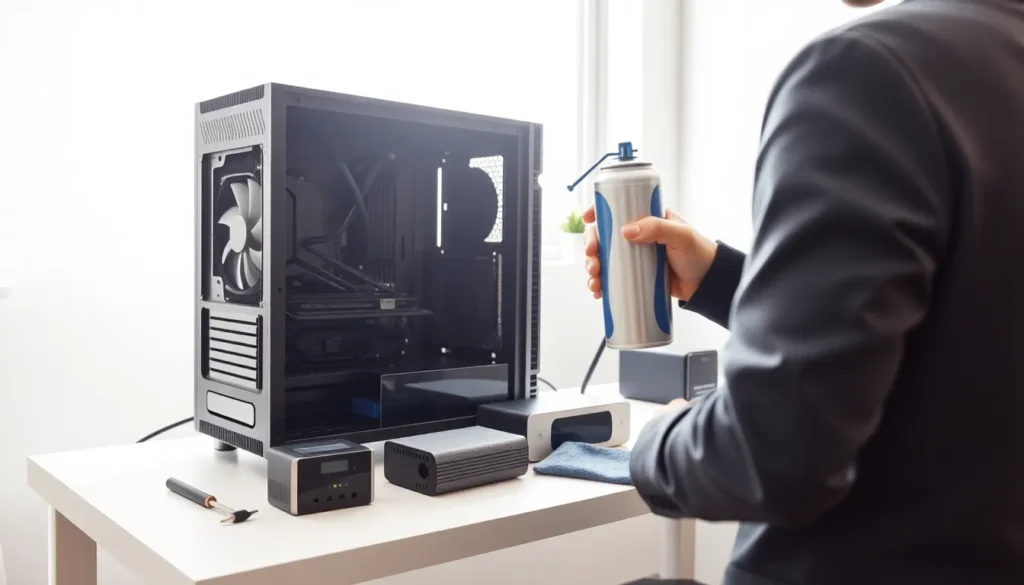
Cleaning a computer every three to six months prevents these problems. Users should power down the system completely and unplug it before starting. A can of compressed air removes dust from fans, heatsinks, and hard-to-reach areas effectively. Short bursts work better than continuous spraying, which can cause moisture buildup.
For keyboards and peripherals, a soft brush or microfiber cloth handles surface dust. Isopropyl alcohol (70% or higher) cleans stubborn grime from surfaces without damaging components. Cotton swabs reach tight spaces between keys and ports.
Laptop owners face additional challenges since their systems are harder to open. Many models allow access to fans through removable panels. For sealed laptops, blowing compressed air through vents helps, though professional cleaning every year or two is worth considering.
One often-overlooked hardware tip: keep the area around the computer clean too. A dusty room means a dusty computer. Placing systems away from carpet and pets reduces intake significantly. Elevated stands also help by keeping intake vents clear of floor-level debris.
Manage Heat and Improve Ventilation
Heat damages electronics faster than almost anything else. Processors, graphics cards, and storage drives all generate significant warmth during operation. Without proper cooling, temperatures climb into dangerous territory where thermal throttling kicks in, or worse, permanent damage occurs.
Good airflow starts with case placement. Computers need breathing room on all sides, especially near intake and exhaust vents. Placing a desktop in an enclosed cabinet or pushing a laptop against a wall restricts airflow and traps heat inside.
Case fans matter more than many users realize. Most systems benefit from a front-to-back airflow pattern: cool air enters through the front, passes over components, and exits through the rear or top. Positive pressure setups (more intake than exhaust) also reduce dust accumulation inside the case.
For laptops, cooling pads provide noticeable temperature drops during heavy use. These accessories lift the device and add extra fans beneath it. Even a simple laptop stand improves airflow by creating space under the chassis.
Monitoring software like HWMonitor or Core Temp reveals actual operating temperatures. CPUs should generally stay below 80°C under load, while GPUs can safely reach 85°C in most cases. Consistent readings above these thresholds signal cooling problems that need attention.
Thermal paste replacement is an advanced hardware tip that yields real results. The compound between processors and heatsinks dries out over time, reducing heat transfer efficiency. Reapplying quality thermal paste every three to five years can lower temperatures by 5-10°C on older systems.
Upgrade Components Strategically
Not every upgrade delivers equal value. Smart hardware tips focus resources where they’ll have the biggest impact rather than chasing the newest components blindly.
RAM upgrades offer excellent returns for systems with limited memory. A computer running 8GB that regularly hits capacity will benefit dramatically from jumping to 16GB or 32GB. But, adding more RAM to a system that never uses what it has wastes money.
SSDs remain one of the best upgrades for older computers. Replacing a traditional hard drive with a solid-state drive transforms boot times and application loading. Even budget SSDs outperform the fastest mechanical drives by wide margins. Users still running HDDs as their primary storage should prioritize this upgrade.
GPU upgrades make sense primarily for gaming and creative workloads. A faster graphics card won’t speed up web browsing or office applications noticeably. Before upgrading, users should confirm their power supply can handle the new card’s requirements and that the CPU won’t bottleneck performance.
CPU upgrades typically require motherboard replacements as well, making them expensive propositions. In many cases, putting that money toward a new system makes more sense than upgrading a dated platform.
One practical hardware tip: check used markets for quality components. Last-generation parts often sell for half their original price while delivering 80-90% of current performance. Sites like eBay, r/hardwareswap, and local classifieds offer legitimate deals from other enthusiasts.
Protect Your Hardware From Power Issues
Power surges, brownouts, and sudden outages damage hardware in ways that aren’t always immediately visible. A single lightning strike near power lines can fry components instantly. Even minor fluctuations stress sensitive electronics over time.
Surge protectors provide basic defense against voltage spikes. Quality models include joule ratings that indicate how much energy they can absorb before failing. Look for units rated at 1,000 joules or higher for computer equipment. Importantly, surge protectors wear out, they should be replaced every three to five years or after a major surge event.
Uninterruptible power supplies (UPS) offer superior protection. These devices include battery backup that keeps systems running during short outages, allowing safe shutdowns. They also condition incoming power, filtering out noise and minor fluctuations. For anyone with important data or expensive hardware, a UPS is a worthwhile investment.
Proper shutdown procedures matter too. Holding the power button or unplugging computers while they’re running risks file corruption and drive damage. Operating systems need time to close programs and write pending data to storage.
Ground connections deserve attention as an often-ignored hardware tip. Ungrounded outlets provide no path for excess electricity, making surge protectors less effective. Using a simple outlet tester confirms proper grounding before connecting expensive equipment.
Practice Preventive Maintenance Habits
Daily habits compound over time. Small actions repeated consistently protect hardware better than occasional deep maintenance sessions.
Shutting down computers when not in use reduces wear on components. Fans, drives, and power supplies all have finite lifespans measured partly in operating hours. Sleep mode offers a middle ground, lower power consumption while maintaining quick wake times.
Keeping software updated prevents many hardware-related issues. Driver updates improve stability, fix bugs, and sometimes boost performance. BIOS updates occasionally address thermal management and compatibility problems. Windows and macOS updates include security patches that protect against malware capable of damaging hardware through overclocking exploits.
Backing up data protects against the inevitable. Storage drives fail, it’s not a question of if but when. The 3-2-1 backup rule recommends three copies of important data, on two different media types, with one stored offsite. Cloud backup services make this easier than ever.
Cable management improves airflow and reduces accident risks. Tangled cables restrict air movement inside cases and create tripping hazards outside them. Velcro ties and cable channels cost little but make maintenance easier and systems safer.
Documenting hardware specifications helps when troubleshooting or planning upgrades. A simple spreadsheet listing components, purchase dates, and warranty information saves time and money. Many people forget what’s inside their systems until something breaks.